
› › Stock Take – Frequently asked questions › Can I sell items during a stocktake
- This topic is empty.
-
AuthorPosts
-
6 February 2021 at 9:50 am #317
Yes, you can sell items during a stocktake, if you follow one of the 3 options listed below.
1. You can continue online sales and create transfers during a stocktake as long as you do not physically remove items from your store or warehouse.
OR
2. If you must remove items during a stocktake (in‑store POS sales, fulfill orders, or transfer stock), make sure you count/scan those items removed using our app before they leave your store.
OR
3. If you cannot count / scan removed items, you can avoid discrepancies by clicking “Refetch inventory” under “More actions” after you count everything listed in your stocktake. Refetch inventory downloads the latest Shopify stock levels and product data.
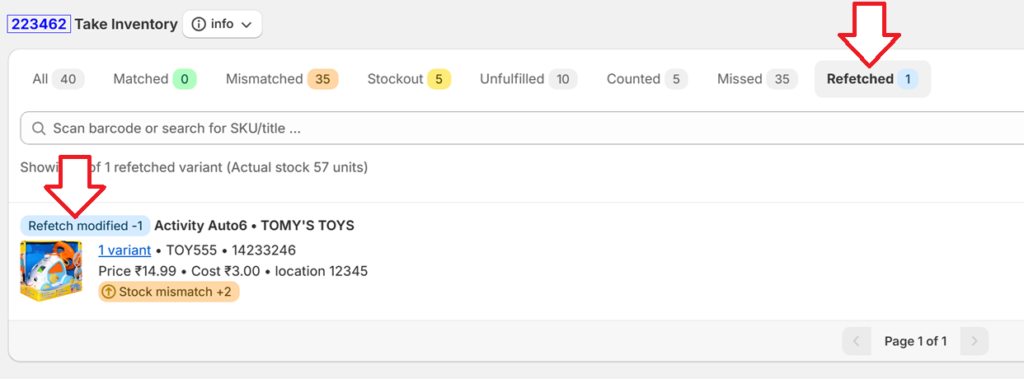
To review refetched items, click the “Refetched” tab. See the image below.
After the refetch, changed products are marked with 3 types of tags, each requiring a different action from you:
- Refetch removed – Products that no longer exist at this location. The app will ignore them and they will not be updated.
- Refetch added – New products added to this location. You must count these, otherwise their stock will be set to zero.
- Refetch modified – Products whose stock changed outside the app (usually due to sales or fulfilments). Recount these to avoid errors.
Note that you only need to refetch on one device, all other devices will pick up the refetched products when you click Save.
Explanation
When you start a stocktake, the app captures a snapshot of your Shopify available inventory and unfulfilled orders. All adjustments you make are applied relative to this snapshot.
Example
Shopify shows 5 units of Product‑A Size Small when you begin the stocktake.
Scenario 1
Your physical count is also 5. No changes are made when you click Update Inventory.
Scenario 2
Your physical count is 6. The app detects a mismatch and adds 1 to Shopify available stock (instead of setting the stock to 6). Incrementing stock ensures that any online orders or incoming transfers during the stocktake are still handled correctly.
Why removing items causes issues
If items are physically removed during a stocktake, the app cannot know whether you have:
- already counted them,
- partially counted them, or
- not counted them yet.
To avoid incorrect stock levels, scan products with the app before they leave the store or use the Refetch inventory option.
Discrepancy report
After updating inventory, the store owner receives an email, listing products whose Shopify stock changed outside the Stock Take app. If you cannot track POS sales during the stocktake, and you do not wish to do a Refetch, you can use this discrepancy list to manually correct any affected products.
-
AuthorPosts
- The forum ‘Stock Take – Frequently asked questions’ is closed to new topics and replies.