Set the Socket Mobile scanner to HID keyboard mode to work with our app
- Reset your Socket mobile device, by powering it on first. Next hold the scan button pressed, then keep the power button pressed while still holding down the scan button. The scanner will beep 3 times and power off.
- Power on the scanner, wait for the blue light to start blinking fast, and scan the barcode below. The reader will emit 3 tones to confirm that it is in keyboard mode.
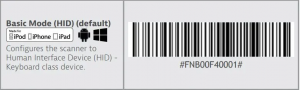
- Open Bluetooth settings in the host device. After a few seconds, when the Socket Mobile reader is discovered, tap it on the screen to start the pairing process.
- After a successful pairing, the connection status will change to “Connected,” the blue light will turn solid, and the reader will emit a single beep.
- To test – Open our app, position the cursor in the search box, press the scan button on top of the scanner to scan a barcode (you do not need to press the Scan button in the app which is for Camera based scanning only).
Note: for the S730 laser scanner, you will need to print this page on to paper.
To reset the Socket Mobile scanner back to default application mode
- Reset your Socket mobile device, by powering it on first. Next hold the scan button pressed, then keep the power button pressed while still holding down the scan button. The scanner will beep 3 times and power off.
- Turn on the scanner and pair it with your host device.
