
› › Pick List – Frequently asked questions › Create Picklists for staff
- This topic is empty.
-
AuthorPosts
-
19 October 2026 at 10:00 am #1055
Orders can be grouped into Picklists and assigned to pickers. They are saved on our server, so every staff member in your store sees the same picklists on the Select orders page. Each picklist is available only to a single user and the app will warn anyone who tries to open the same picklist on multiple devices.
1. Creating a picklist batch
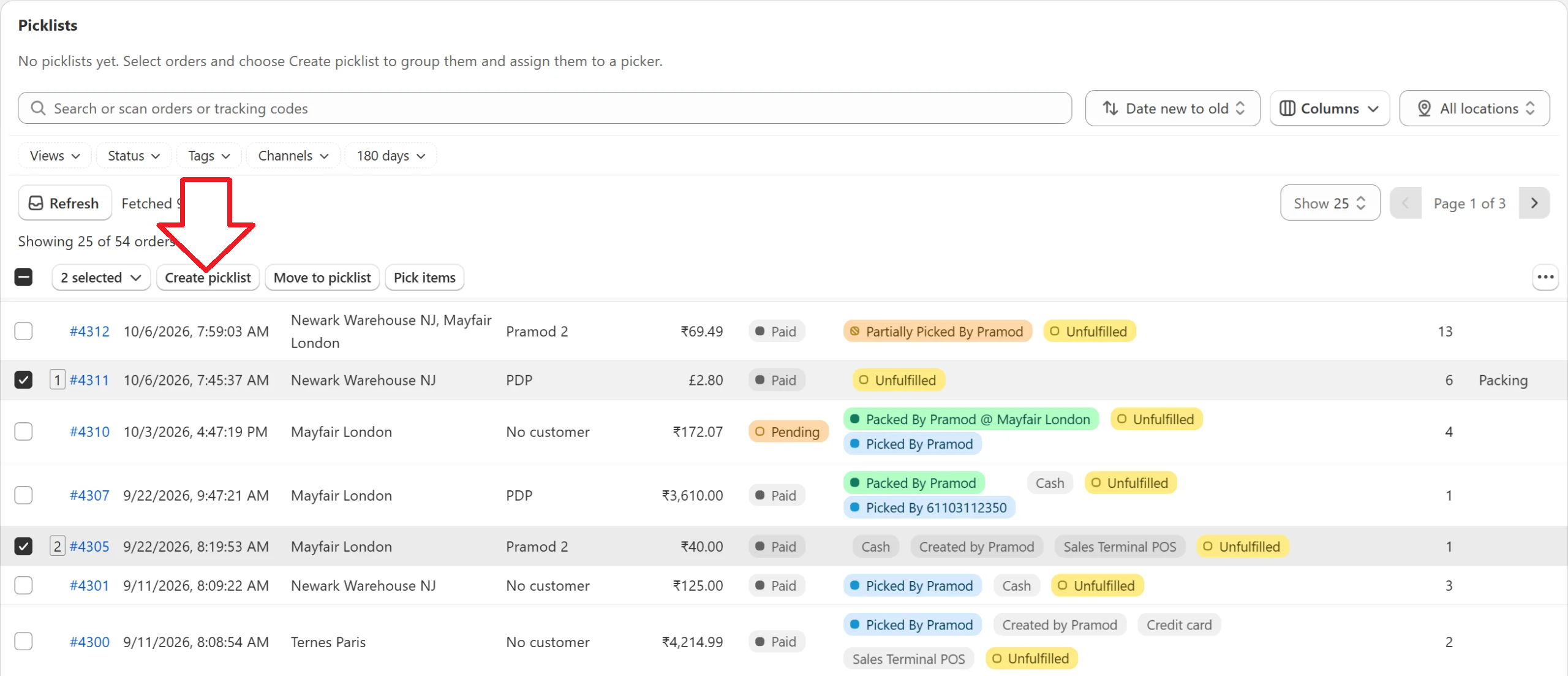
On the Select orders page, select one or more orders. A bar appears above the order list with the buttons Create picklist, Move to picklist and Pick items. Click Create picklist.
In the dialog you can:
- Type a Picklist name. If you leave it blank, today’s date is used (2026-10-19), followed by #01, #02, #03 and so on for further picklists created on the same day.
- Choose who to Assign to. Start typing a name or pick one from the list. The list shows everyone who has opened the app. This is optional, and you can enter a note instead of a name if you wish (for example: “Urgent pick and dispatch immediately”). If you do not enter a name, the picklist is marked as “Unassigned”. Any user who opens a picklist is automatically assigned to it.
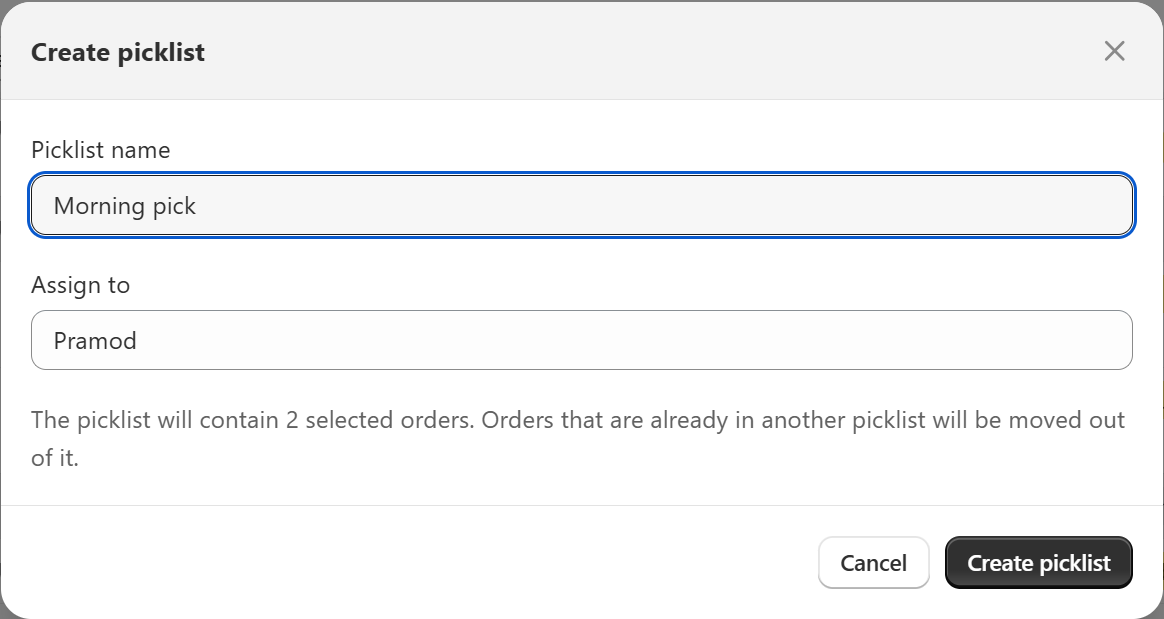
A picklist can hold up to 500 orders, and an order can only be in one picklist at a time. If a selected order is already in another picklist, it is moved out of that one.
Picking without a picklist. If you select orders and click Pick items, the app automatically creates a picklist for them, assigns it to you and starts picking. If any of the selected orders are already in another picklist, you are asked to confirm first before those orders are moved to your picklist. Similarly, other users will be warned if they try to pick any orders already assigned to your picklist.
Orders that are in a picklist show the picklist name as a blue tag next to the order number on the Select orders page.
2. The Picklists panel
All picklists are listed in the Picklists panel at the top of the Select orders page. Each row shows:
- The picklist name, the time it was created, and the number of orders.
- One or more status badges: Unpicked, Partially picked, Picked, Partially packed and Packed. If the orders in a picklist are at different stages you see one badge per stage with a count, for example Unpicked 2 and Picked 1.
- A yellow In progress badge when someone is picking it (see section 6).
- The assigned picker’s name/note, or Unassigned.
- Use the Edit button to rename or reassign the picklist, the red trash can to delete the picklist, or the Pick picklist button to start picking.

Picklists are collapsed by default, click on the it to see the list of batches. Click the arrow next to a picklist name to see its orders. The orders use the same columns, in the same order, as the main order list, so changing your columns (Columns menu) changes them here too. To take an order out of a picklist, click the trash can at the end of its row and confirm. The order itself is not changed and you can add it to a picklist again.
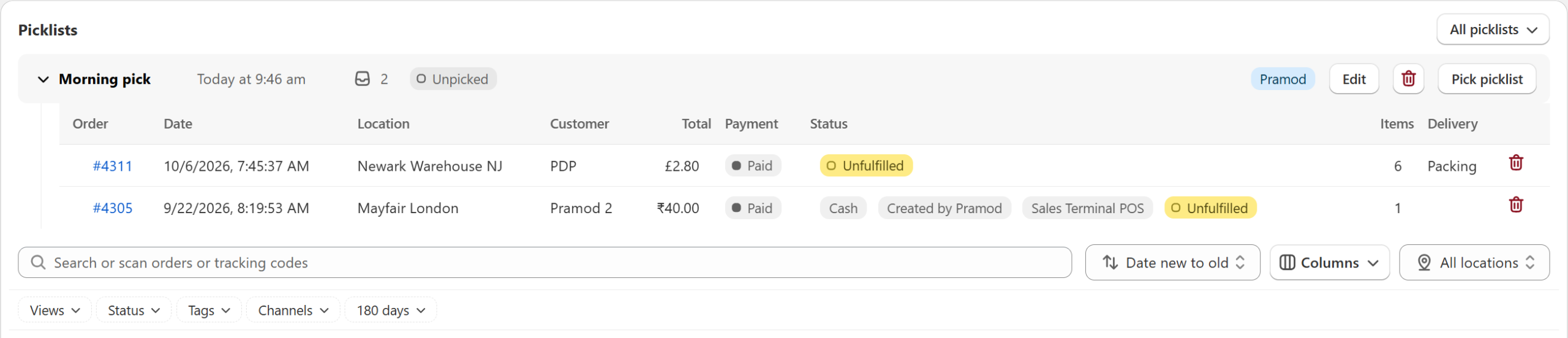
If you have more than 10 picklists, a pager at the bottom of the panel lets you move between pages.
3. Adding orders to an existing picklist
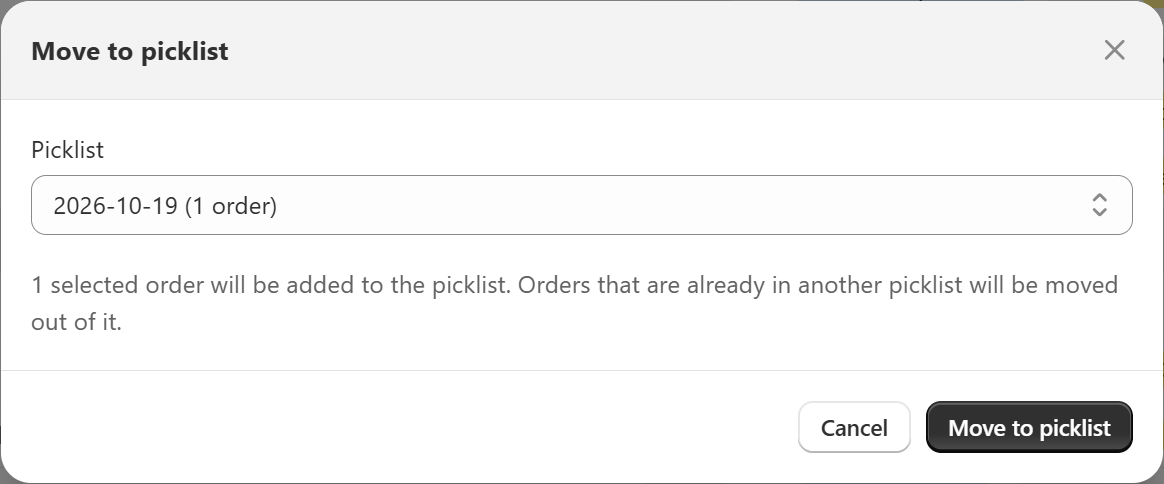
Select the orders, click Move to picklist, choose a picklist from the list (each one shows how many orders it holds) and click Move to picklist. Orders that were in another picklist are moved out of it.
4. Editing or deleting a picklist
Click Edit on a picklist to rename it or to change (or clear) the assigned picker. If someone started picking it and then stopped without finishing, the dialog also lets you clear their In progress entry.
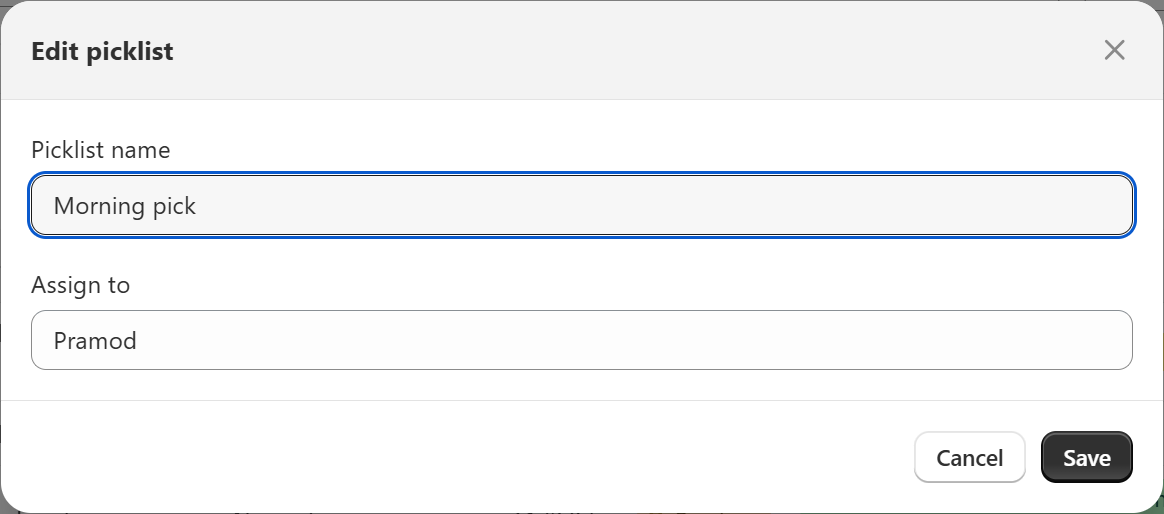
Click the red trash can to delete a picklist. You are asked to confirm, and the orders in it are not affected. Note that if a user is actively picking a deleted list, that users list if not affected. Orders will still be marked as picked when the user completes picking, but the picklist will not exist.
5. Filtering the picklists
The menu at the top right of the panel filters what is displayed:
- All picklists, Assigned to me or Unassigned.
- Hide picked picklists hides picklists where every order has been picked.
- Hide packed picklists hides picklists where every order has been packed. This is ticked by default.
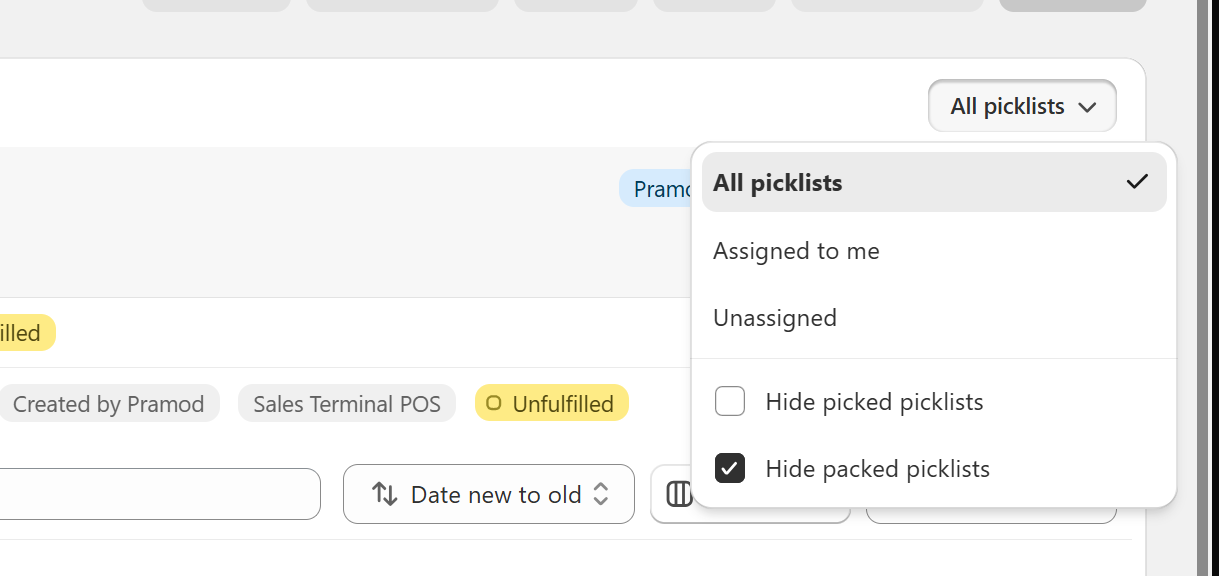
Your choices are remembered in your browser the next time you open the app.
Location filter: when you choose a specific inventory location in the location menu, each picklist only shows the orders that can be picked at that location, and picklists that have no orders are hidden. When All locations is selected nothing is hidden.
6. Picking a picklist
Click Pick picklist to start picking all the orders in it. The picking screen opens with the picklist name and order count at the top.
When you start:
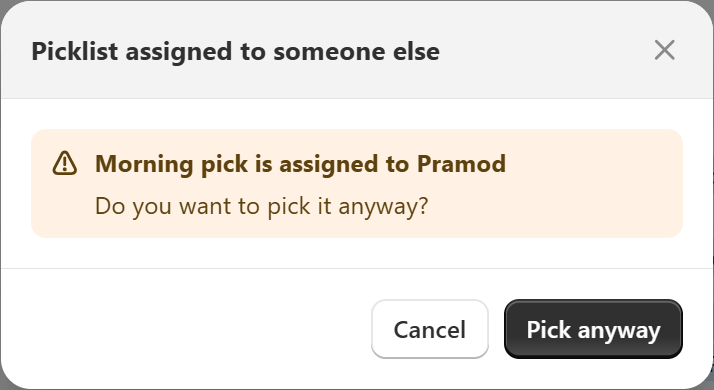
- If the picklist was assigned to a different user or has a note instead of your username, the app displays a warning before you can proceed. If you choose to proceed the picklist is reassigned to you.
- If the picklist is unassigned, it is assigned to you automatically.
- The picklist then gets a yellow In progress badge and displays your name, so other staff can see it.
- When you click Finished and then Okay, your In progress entry is removed.
Warnings. The app checks the latest information from the server before you start:
- If the picklist is assigned to someone else, you see a warning and can choose Pick anyway or Cancel.
- If someone else is already picking it, you see a stronger red warning that names who is picking it and where.
The same red warning is shown before you delete a picklist, remove an order from it, move orders in or out of it, or edit it while someone is picking it.
Several people and inventory locations. More than one person can pick the same picklist at once only if they are at different locations. You only get the warning when the other picker’s work can overlap with yours:
- If you are picking with All locations, you are warned about anyone picking that picklist at any inventory location.
- If you are picking at a specific location, you are warned about people picking at the same location and people picking with All locations, but not about people picking at a different location.
7. Picking history
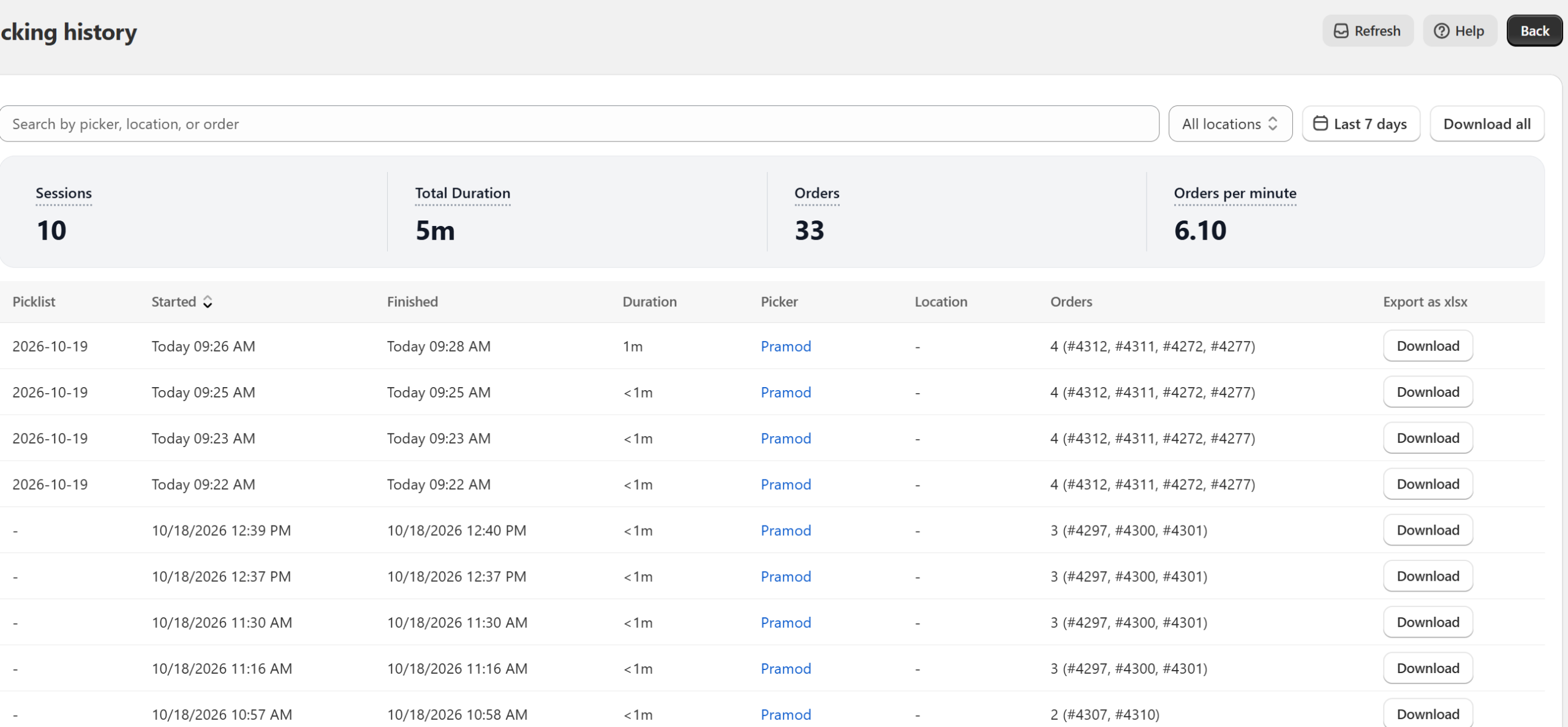
The Picklist column is the first column in the History page. It shows the name of the picklist that was picked, or a hyphen (-) if the orders were not picked from a picklist. You can sort by it, and the search box also searches picklist names. The name is saved when picking starts, so renaming a picklist later does not change older history.
Notes
- Picklists are shared by all staff in the store, and anyone can edit, delete or pick any picklist, which is why the warnings above are shown.
- The status badges are worked out from the order tags (Picked, Partially Picked, Packed and so on) of the orders that are currently loaded on the page. Orders outside the selected date range or filtered status are not displayed in the picklist. For example, a supervisor may create a picklist with orders that are 90 days old, but a picker may not see this list if their filter is set to show orders only for the past 30 days.
- Picklists are hidden if all the orders in it are fulfilled and archived.
- Batched picklists expire after 30 days if inactive and are automatically deleted.
-
AuthorPosts
- The forum ‘Pick List – Frequently asked questions’ is closed to new topics and replies.