
› › Pick List – Frequently asked questions › Picking and packing with multiple staff
- This topic is empty.
-
AuthorPosts
-
14 March 2022 at 1:52 pm #747
Merchants use different workflows when fulfilling orders, and our app is designed to support most processes used by Shopify merchants. Below is a common workflow for merchants who have one group of pickers and a separate group of packers. Note: Picklists are not shared between staff. Each picker or packer must work with their own list on their own device/computer.
1. Print packing slips or invoices
Print the packing slips/invoices for all orders you plan to pick. These documents are usually packed with the order and sent to the customer.
You can print packing slips directly from our app by creating a picklist, selecting “Group by: Order”, and clicking “Print 1 order per page” in the top menu.
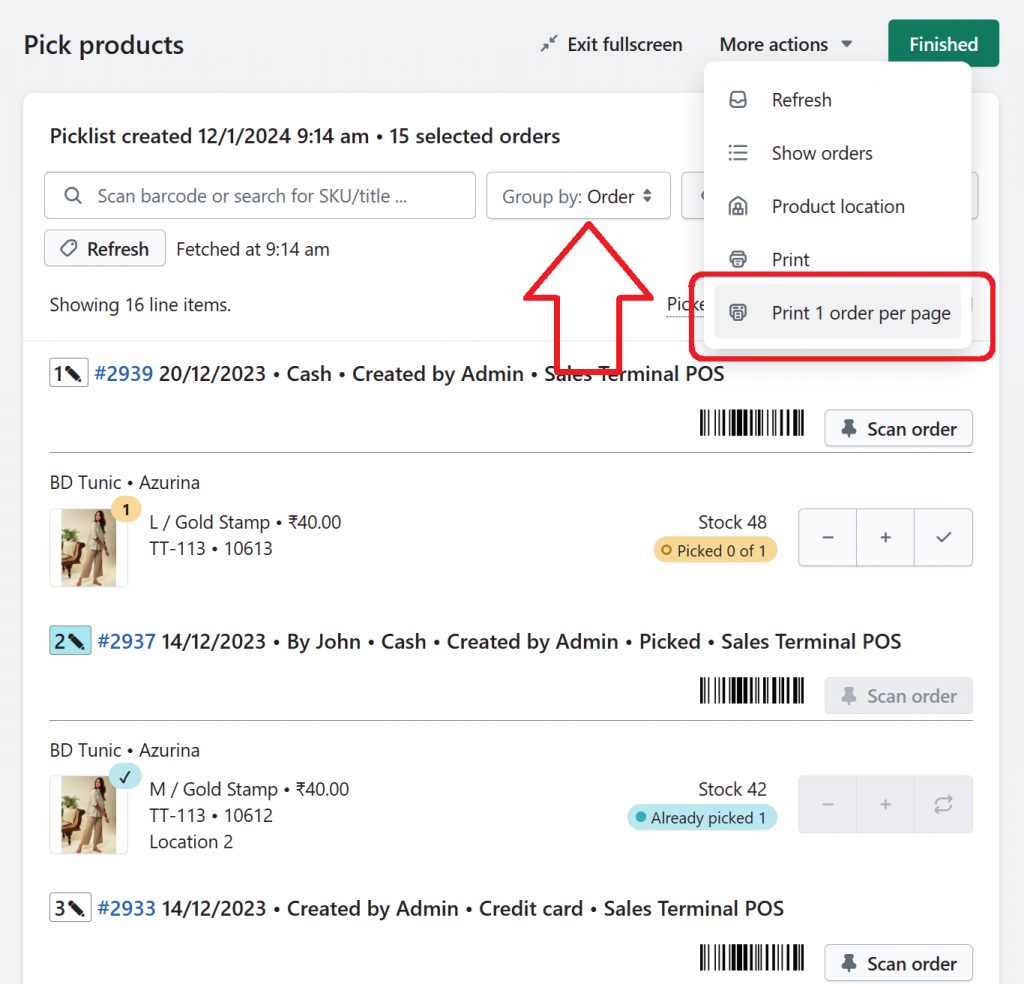
Alternatively, you can use Shopify’s free Order Printer App, which allows you to customize the layout of your packing slips/invoices.
2. Assign orders to pickers
Divide the printed packing slips/invoices among your pickers so each picker knows which orders they are responsible for.
3. Pickers create their picklists
Each picker opens the Pick List app, selects their assigned orders, and creates a picklist.
To reduce human error and speed up order selection, we recommend adding order number barcodes to your printed packing slips/invoices. The picker then scans the order numbers directly off the printed packing slips when selecting orders to pick. The Order Printer app can also be customized to include these barcodes (add barcode to Order Printer invoice).
4. Pickers collect and mark items
Pickers choose one of the “Group by” options to sort their picklist, collect the products, and mark items as picked – either manually using on‑screen buttons or by scanning barcodes.
How do I use the Pick List app
When finished, they click “Finished”. If pickers are also responsible for packing, they may skip clicking “Finished” and proceed directly to Step 6 (packing).
5. Hand over picked items to packers
Pickers pass the picked products and the printed slips/invoices to the packers. Packers then select or scan the Picked order barcodes and create a new picklist on their own device/computer.
6. Packers begin packing
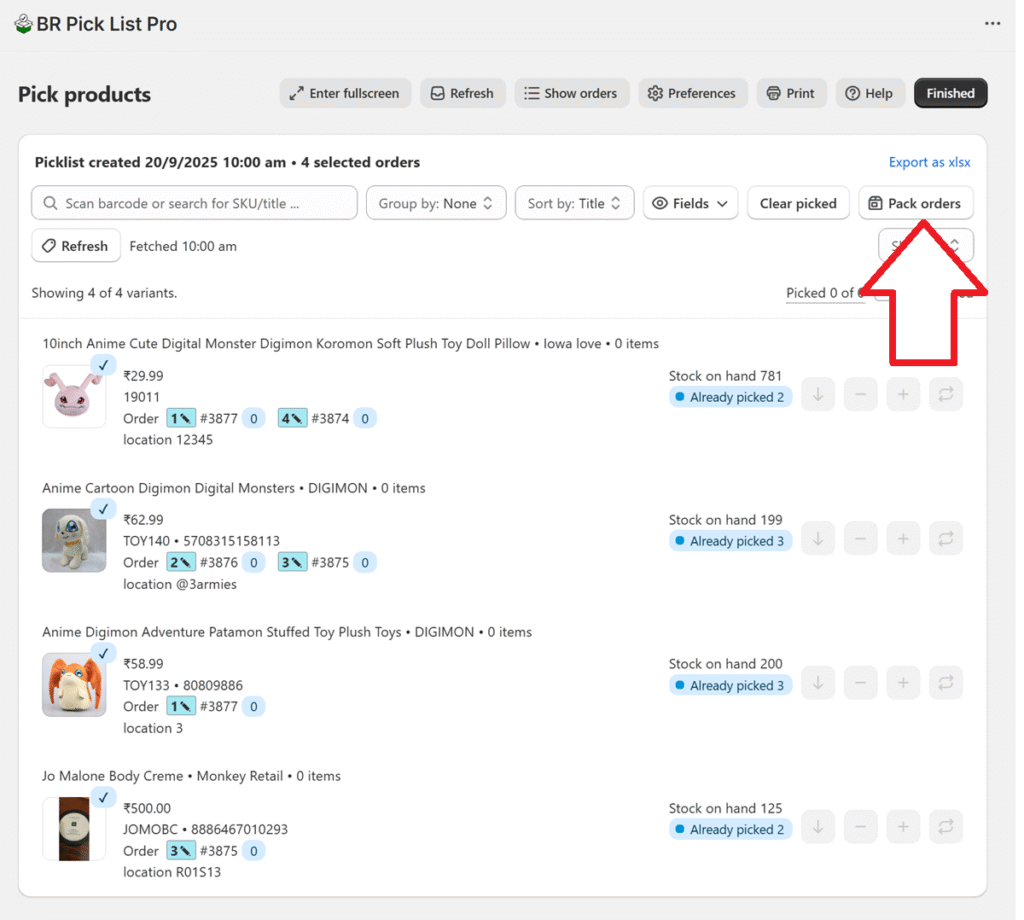
Once the picklist loads, the packer clicks “Pack orders” to view the products in each order. Only orders marked as Picked can be packed.
To reduce packing errors, we recommend scanning each product as it is placed into the shipping box.
7. Limit the view to a single order (optional but recommended)
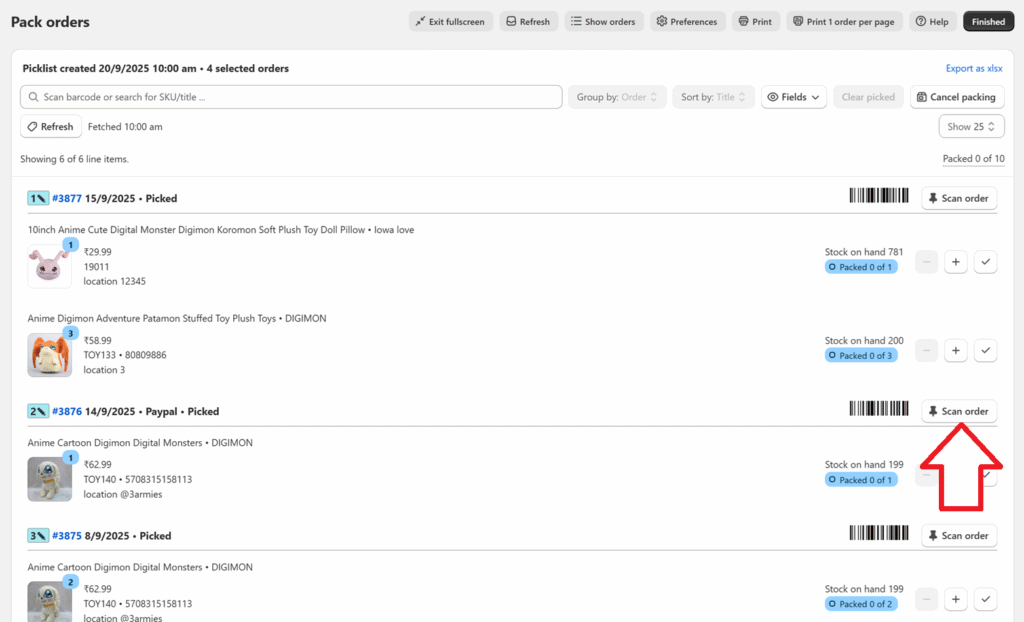
During packing, packers can filter the screen to show only the order being packed by:
- scanning the order ID barcode, or
- clicking “Scan order”
When an order ID barcode is scanned:
- The app emits a long high‑pitched beep to indicate that only one order is being displayed.
- Scanning correct products emits short beeps.
- Scanning an incorrect product emits two low‑pitched beeps.
- Once all products in the order are scanned, the app emits another long high‑pitched beep, and the full list of orders reappears.
8. Fulfil and finish
After packing, fulfill/ship the packed orders and click the “Finished” button on the top right.
Orders that have been fulfilled cannot be picked again and will be removed from the Order selection page. If you need to view or pick fulfilled orders, use the “Include fulfilled” and/or “Include archived” status filters.
-
AuthorPosts
- The forum ‘Pick List – Frequently asked questions’ is closed to new topics and replies.